
Scalable Bulk Writing to Databricks: write_df_to_delta
Source:vignettes/write_df_to_delta.Rmd
write_df_to_delta.RmdExecutive Summary
For DfE analysts moving data from RStudio to Databricks via an odbc connection,
write_df_to_delta() is a significant step up from DBI methods. While
DBI::dbWriteTable() relies on slow SQL-based uploads,
write_df_to_delta() uses the Databricks
REST API to stream data directly into Unity Catalog
Volumes, making the upload faster and more resilient.
Why this is a game-changer for your workflow:
-
Extreme Speed:
write_df_to_delta()moves 1 million rows (42 MB) in 11 seconds—compared to 30 minutes usingDBI::dbWriteTable(). -
Proven at Scale: Successfully stress-tested up to 1
billion rows (41 GB). To move this volume of data via
DBI::dbWriteTable()would take an estimated 20 days of continuous processing;write_df_to_delta()completes the task in under half an hour. -
Bypasses Payload Limits: Large files often cause
REST API uploads to hang or fail.
write_df_to_delta()automatically “chunks” your data, navigating the Databricks REST API limit of 5 GB per single file upload. As a result, you can upload gigabytes of data without a hitch. -
Network Resiliency: Moving massive files over the
network is prone to transient “blips.” Our built-in auto-retry logic
ensures that if a REST request fails,
write_df_to_delta()waits and tries again until the job is done. -
Schema Safety:
DBI::dbWriteTable()defaults to a 255-character limit for text, that is, it maps strings to Databricks SQLVARCHAR(255).write_df_to_delta()maps character strings to Databricks SQLSTRINGtypes, meaning your long text fields can be uploaded without errors. -
Precise Mapping: For advanced users,
write_df_to_delta()allows for refined data type mapping (e.g.,FLOAT,DECIMAL) via Arrow schemas.
Under the Hood: The REST API Advantage
Standard DBI uploads send data row-by-row or in SQL batches, which is
incredibly slow for big data. write_df_to_delta() uses a
sequential ingestion strategy:
- It optionally creates or overwrites your Delta Lake table using SQL (via ODBC).
- It converts your data into compressed Parquet file(s).
- It uses the Databricks REST API to upload those temporary file(s) to a Volume.
- It executes a SQL COPY INTO command to merge those file(s) into your table.
- It deletes the temporary file(s) from the Volume.
Parquet conversion is crucial for two reasons:
- Efficiency: Parquet’s column-oriented compression significantly reduces the file size, making the network upload much faster.
-
Compatibility: Since Delta Lake tables are natively
stored as Parquet files, converting the data upfront ensures a seamless,
high-speed
COPY INTOoperation later.
Prerequisites: Permissions and Authentication
To ensure a seamless transfer, you must verify that your Databricks environment and R session are correctly configured.
Databricks Permissions
The utility interacts with three different layers of Databricks security. You will need:
-
Catalog & Schema:
USE CATALOGon the target catalog andUSE SCHEMAon the target schema. -
Table Management:
CREATE TABLEpermissions on the target schema (required ifoverwrite_table = TRUE) orMODIFYandSELECTpermissions on an existing table. -
Staging Volumes:
READ VOLUMEandWRITE VOLUMEon the Unity Catalog Volume used for staging (specified in thevolume_dirargument).
R Session Configuration
write_df_to_delta() uses the Databricks REST API for
high-speed data transfer. For the API to authenticate, you must have the
following variables defined in your .Renviron file:
-
DATABRICKS_HOST: The URL of your workspace. -
DATABRICKS_TOKEN: Your personal access token (PAT).
Tip: Before you start, use
check_databricks_odbc() to verify that your connection and
environment variables are correctly configured.
Basic Usage
Once your permissions are set, using write_df_to_delta()
is straightforward. See the example below, or refer to the
write_df_to_delta() help page for a full description of all
available parameters.
library(dfeR)
library(DBI)
library(odbc)

# Establish your connection
con <- DBI::dbConnect(odbc::databricks(),
                      httpPath = Sys.getenv("DATABRICKS_SQL_PATH"))

# Upload data frame to Delta Lake
# The volume_dir is the path to your staging Volume in Unity Catalog
write_df_to_delta(
  df = my_data,
  target_table = "catalog.schema.my_table",
  db_conn = con,
  volume_dir = "/Volumes/catalog/schema",
  overwrite_table = TRUE
)
What happens during execution?
While the function runs, you will see progress updates in the R console. Because of the auto-retry logic, if the function encounters a network “blip” during the upload to the Volume or during the final clean-up/deletion, it will automatically retry the operation, ensuring your R session remains stable and your Volume stays clean.
Tip: If you prefer a silent execution, you can wrap
the function in suppressMessages() to hide the progress
updates.
Advanced Usage
While write_df_to_delta() is designed to work “out of
the box,” there are scenarios where you may need precise control over
data types, memory management, or table behaviour.
Precise Data Type Mapping (Arrow Schemas)
If you have specific requirements, such as ensuring a number is a
DECIMAL(18,2) instead of a DOUBLE, you can
pass an arrow::schema() directly into the function. This
schema is applied during the Parquet conversion step.
library(arrow)

my_custom_schema <- schema(
  transaction_id = int64(),
  amount = decimal128(precision = 18, scale = 2)
)

write_df_to_delta(
  df = financial_data,
  target_table = "finance.audit.transactions",
  db_conn = con,
  volume_dir = "/Volumes/main/default/staging/",
  schema = my_custom_schema
)
Manual Chunking for Memory Management
By default, the function handles data in 5 GB chunks. This value is chosen to safely navigate the Databricks REST API limit while maintaining high throughput.
Adjusting Chunk Size: You can use the
chunk_size argument to fine-tune performance based on your
specific dataset:
- Decreasing the size (e.g., 1 GB): Use this if your local R session is running out of RAM e.g. during the Parquet conversion step.
- Increasing the size: If you have a very “sparse” dataset, Parquet compression will be extremely high. In this case, you could increase the chunk size to process more data per upload since the resulting Parquet file will be well under the 5 GB REST API limit.
write_df_to_delta(
  df = my_data,
  target_table = "catalog.schema.my_table",
  db_conn = con,
  volume_dir = "/Volumes/main/default/staging/",
  chunk_size = 1 * 1024^3  # 1 GB in bytes
)
The Stability vs. Speed Trade-off: Reducing the chunk size increases the total number of sequential operations performed by the function. This adds significant network overhead. We recommend sticking with the 5 GB default; the function will take longer to finish with smaller chunks.
Overwriting vs. Appending
By default, write_df_to_delta() will append data to an
existing table. If you want to overwrite the existing table, you must
set overwrite_table = TRUE.
Performance Benchmarks
We conducted a series of head-to-head tests of
write_df_to_delta() against
DBI::dbWriteTable().
Methodology
Tests were performed on the DfE High Memory Desktop (AVD: 137 GB RAM, 16 Cores). Benchmarks utilised a synthetic dataset comprising integers, numerics, characters, factors, logicals, Dates, and UTC timestamps. This ensures performance results account for the processing overhead associated with diverse SQL data types.
To ensure statistical reliability and account for fluctuations in network traffic or cluster load, we carried out 10 independent runs for each data volume (rows), , where . The benchmarks presented below show the median execution time, with the error bars representing the interquartile range ( to percentile).
Key Results
As shown in the graph, for small datasets (< 1,000 rows),
DBI::dbWriteTable() is competitive. However, once you
exceed 10,000 rows, the overhead of SQL-based inserts becomes a massive
bottleneck. At 1 million rows, while write_df_to_delta()
finishes in roughly 11 seconds, the standard DBI approach takes nearly
30 minutes.
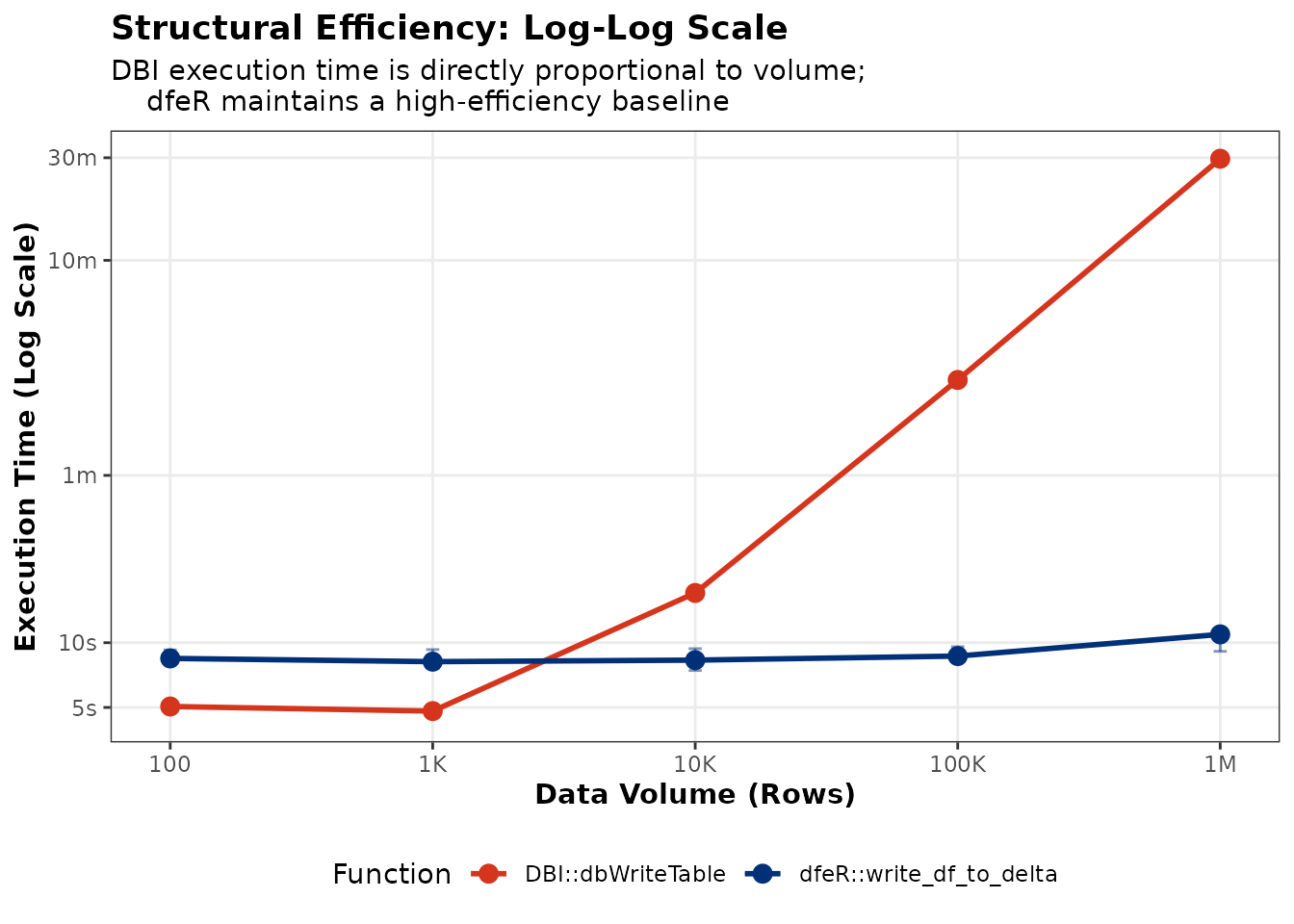
Figure 1: Performance comparison between DBI and dfeR across increasing row counts.
Recommendation: Choosing the Right Tool
| Dataset Size | Recommended Method | Reason |
|---|---|---|
| Small (< 5k rows) | DBI::dbWriteTable() |
Lower overhead; no need for Volume staging. |
| Medium (5k - 100k rows) | write_df_to_delta() |
Significant reduction in execution time compared to standard SQL-based inserts. |
| Large/Stress (> 1M rows) | write_df_to_delta() |
The only viable method for high-volume transfers within a standard analytical window. |
Stress Tests
To ensure write_df_to_delta() is ready for the DfE’s
largest datasets, we pushed the utility to the practical limit of an R
session’s memory: a synthetic dataset of 1 billion rows (~41 GB). While
the smaller benchmarks focused on pure speed, the stress test evaluated
stability and recovery over long durations.
Methodology
The stress tests were performed on the DfE High Memory Desktop (AVD). We used a synthetic dataset (comprising integers, numerics, characters, factors, logicals, Dates, and UTC timestamps) of up to 1 billion rows (~41 GB). We conducted 5 independent runs for each data volume (rows), , where .
A 1-billion-row dataset represents the practical maximum scale for a single R session on AVD. While the AVD hardware is robust, a 10-billion-row dataset would exceed R’s in-memory capacity.
Note: Because these tests were conducted on a shared DfE cluster, execution times include the real-world impact of concurrent user activity and network contention.
The “Safety Net”: Resilience at Scale
When moving bulk data, the biggest risk is the network. Because the internal functions that handle these uploads are hidden from the user, it is important to understand the built-in “safety net” that ensures your data actually arrives:
Patience for Large Payloads: We have configured a 10-minute (600s) “Transfer Safety” window for each chunk. This ensures that even if a 5GB payload is moving slowly across the network, it isn’t cut short prematurely.
Automatic “Self-Healing” Retries: If an upload hangs or fails due to a network flicker, the tool triggers an internal recovery loop. It will automatically attempt to re-upload the specific failed chunk up to 5 times, waiting for an increasing amount of time (exponential backoff) between attempts.
Why this matters: In the benchmarks, you may notice variability in execution times. This usually indicates the tool detected a network issue, waited for the safety window, and successfully retried the upload automatically.
Key Results and Observations
The boxplot below captures both the speed and the stability of the transfer across eight orders of magnitude.
Linear Scaling:
write_df_to_delta()demonstrates consistent, predictable scaling even as it approaches the practical memory ceiling.Automated Chunk Management: The Databricks REST API has a strict 5 GB limit per file.
write_df_to_delta()automatically calculated and managed the 41 GB upload in 9 sequential chunks. This removes the need for analysts to manually slice their data, ensuring each piece stays under the API limit while maintaining maximum throughput.Stability & Memory Efficiency: Despite the massive data volume, the R session maintained a stable ~5 GB overhead. By streaming data in chunks, the utility avoids “double-buffering” the data in RAM, which prevents the RStudio crashes that may happen during large-scale exports.
Reliability Trade-off: Sequential chunking introduces a small amount of network overhead for each “slice.” While this makes the total execution time longer than a single (theoretical) massive upload, it is a necessary trade-off to ensure the transfer is fault-tolerant and bypasses REST API payload limits.
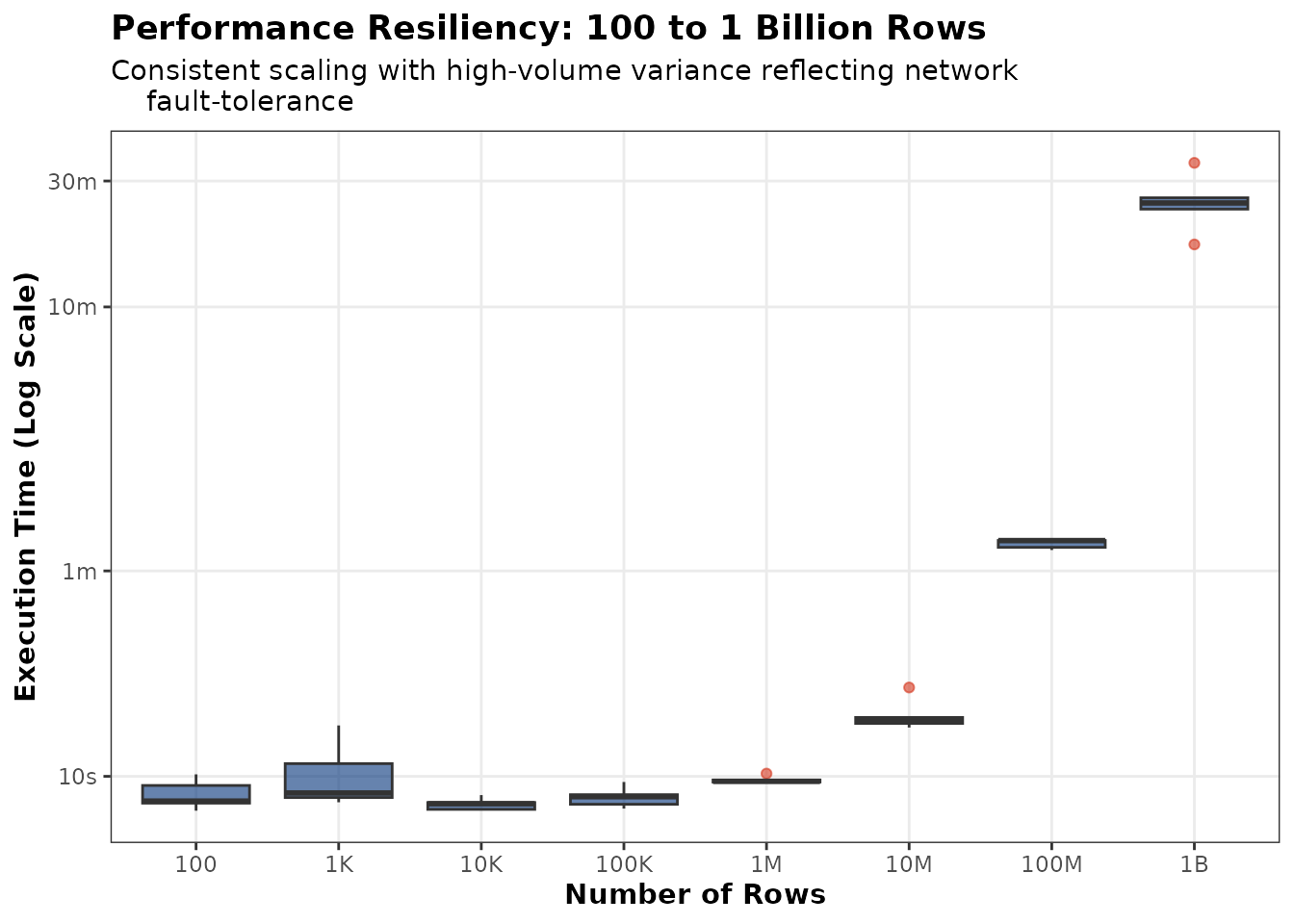
Figure 2: Performance resiliency testing from 100 to 1 billion rows, showing stable execution times.
Troubleshooting
The write_df_to_delta() function includes extensive
validation checks. In most cases, if an error occurs, the console will
provide a specific, descriptive message detailing the issue. If
you encounter an error, please read the console output
first.
-
Data Type & Schema Mismatches: If you are
appending to a table, you must ensure that your R data types are
compatible with the existing Delta table schema. Even when overwriting
the table, conflicts can arise during the three-layer mapping process:
the R class, the Apache Arrow schema (used for Parquet conversion), and
the Databricks SQL type.
- If you hit a mismatch, try explicitly casting your R columns before running the function to ensure the Arrow conversion maps correctly to the target SQL types.
- Use the
column_types_schemaargument to enforce precise types (e.g.,arrow::timestamp("us")orarrow::utf8()for factors). This ensures the Parquet file strictly matches the expectations of the DatabricksCOPY INTOcommand. See Precise Data Type Mapping (Arrow Schemas). - Pay close attention to decimal scales and timestamp precisions
(seconds, milliseconds, or microseconds), as these must align with the
target SQL column to avoid ingestion failures. Avoid nanosecond
(
ns) precision, as it is often incompatible with Databricks runtimes.
-
Permission & Authentication Errors: If your
message mentions missing access or failed handshakes, ensure your
.Renvironis configured correctly and that you have the necessary permissions to the target catalog, schema and Volume; see Permissions and Authentication. - Network Timeouts or “Hangs”: If the progress bar appears to stall, the utility is likely managing a network flicker using its internal retry loop. You can read about this in The “Safety Net”: Resilience at Scale.
- Performance Variability: Fluctuations in execution time are typically due to shared cluster load or network traffic on the DfE environment. Variability can also occur when the function triggers internal retries to recover from transient network failures.