devolved_area_lookup <- read.csv("https://raw.githubusercontent.com/dfe-analytical-services/dfe-published-data-qa/master/data/english_devolved_areas.csv")Preparing data
Preparing data is our first core RAP principle, which contains the following elements:
- Source data is acquired and stored sensibly
- Files meet data standards
- Sensible folder and file structure
Your team should store the internal raw data in the Databricks platform. This means that you can run code against a single source of data, reducing the risk of error. Legacy SQL servers will be decommissioned in 2026, by which point, all data will have been migrated into the Databricks Unity Catalog instead.
Source data is acquired and stored sensibly

What does this mean?
When we refer to ‘source data’, we take this to mean the data you use at the start of your process to create the underlying data files or analysis. Any cleaning at the end of a collection will happen before this.
Legacy SQL servers will be decommissioned in 2026, and all data will be migrated into the Databricks Unity Catalog instead. As far as meeting the requirement to have all source data in a database, databases other than Databricks may be acceptable, though we can’t support them in the same way.
In order for us to be able to have an end-to-end data pipeline where we can replicate our analysis across the department, we should store all of the raw data needed to create aggregate statistics in the Databricks platform. This includes any lookup tables and all administrative data from collections prior to any manual processing. This allows us to then match and join the data together in an end-to-end process.
Why do it?
The principle is that this source data will remain stable and is the point you can go back to and re-run the processes from if necessary. If for any reason the source data needs to change, your processes will be set up in a way that you can easily re-run them to get updated outputs based on the amended source data with minimal effort.
Having all the data and processing it in one place makes our lives easier, and also helps us when auditing our work and ensuring reproducibility of results.
How to get started
For resources to help you learn about Databricks and how to migrate your data into the Unity Catalog, please see our ADA and Databricks documentation.
Files meet data standards
Open Data Standards
You can find information on our standards for Open Data, including how to assess your data against these standards, on our Open Data standards page.
Standardised reference data
There will of course be cases where some of the data you use is reference data not owned by the DfE, or is available online for you to download rather than in an internal server. There are ways of incorporating this into a reproducible analytical pipeline nicely, sometimes you can even use links/URLs in your code that will always pull the latest data such that you will never need to change the link to reflect updates to the data!
Raw files on GitHub
If you want to use reference data from GitHub, you can use the URL to the raw file. A common example of when you might want to use this would be to use geographic lookup tables that contain names and codes of different geographic levels for EES files (which are available in our data screener repository).
If you find the data you’re interested in within a repository, rather than copying, cloning or downloading the data, you should click the ‘raw’ button (see the below screenshot).
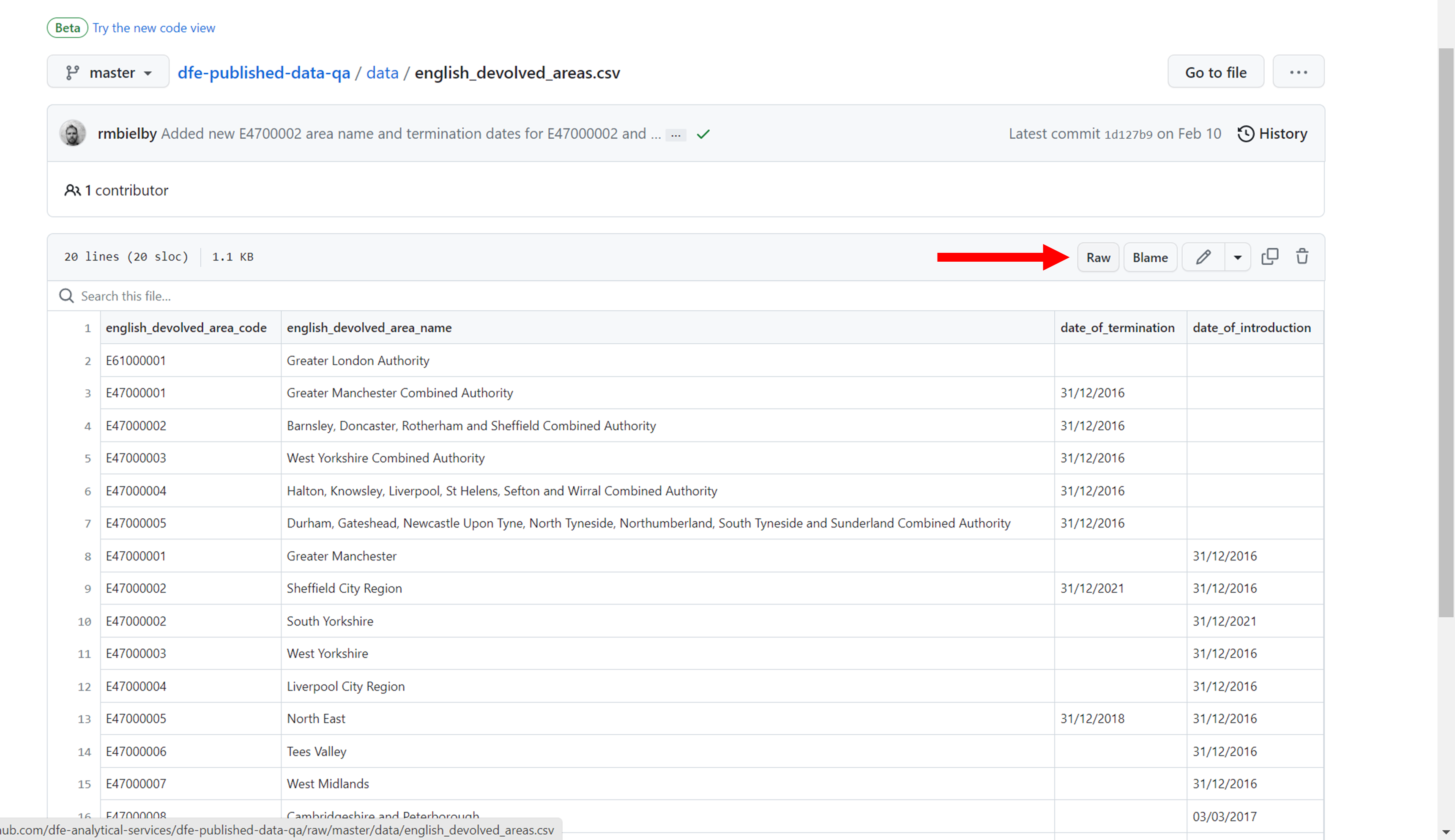
This should take you to a new window which contains the raw data from the CSV file. Copy the URL from this page, as this is what we can use to pull the latest data into our code.
You can now use this URL as you would use a file path in a read.csv() query. For example;
The above code snippet will load in the data as it would with any other CSV, however the benefit is if that data file is updated on GitHub, when you run the code it will always pull the latest version. This is especially useful for lookup tables and reference data, and is best RAP practice as it removed the need for any manual steps (like downloading, copying & pasting or manually updating the data/code!)
Sensible folder and file structure
What does this mean?
Your project should have a clear, logical folder structure that makes it easy for anyone to locate files. This includes having sensible folder names and sub-folders to separate out different types of files, such as code, documentation, outputs and final versions. Ask yourself if it would be easy for someone who isn’t in the team to find specific files, and if not, is there a better way that you could name and structure your folders to make them more intuitive to navigate?
Why do it?
How you organise and name your files will have a big impact on your ability to find those files later and to understand what they contain. You should be consistent and descriptive in naming and organizing files so that it is obvious where to find specific data and what the files contain.
How to get started
Some questions to help you consider whether your folder structure is sensible are:
- Is all documentation, code and outputs for the publication or analysis saved in one folder area?
- Is simple version control clearly applied (e.g. having all final files in a folder named “final”?)
- Are there sub-folders like ‘code’, ‘documentation’‘, ’outputs’ and ‘final’ to save the relevant working files in?
- Are you keeping a version log up to date with any changes made to files in this final folder?
You could also consider using the create_project() function from the dfeR package to create a pre-populated folder structure for use with an R project
Naming conventions
Having a clear and consistent naming convention for your files is critical. Remember that file names should:
Be machine readable
- Avoid spaces.
- Avoid special characters such as: ~ ! @ # $ % ^ & * ( ) ` ; < > ? , [ ] { } ‘ “.
- Be as short as practicable; overly long names do not work well with all types of software.
Be human readable
- Be easy to understand the contents from the name.
Play well with default ordering
- Often (though not always!) you should have numbers first, particularly if your file names include dates.
- Follow the ISO 8601 date standard (YYYYMMDD) to ensure that all of your files stay in chronological order.
- Use leading zeros to left pad numbers and ensure files sort properly, e.g. using 01, 02, 03 to avoid 1, 10, 2, 3.
If in doubt, take a look at this presentation, or this naming convention guide by Stanford, for examples reinforcing the above.